Connect ChatGPT
Coming soon: Knowledge Raven will be available directly in the ChatGPT App Store — no manual setup required. Until then, use the Developer Mode setup below.
Developer Mode Setup
Connect Knowledge Raven to ChatGPT by creating a custom app in Developer Mode.
Requirements:
- A ChatGPT account (Plus or above)
- A Knowledge Raven account (sign up free )
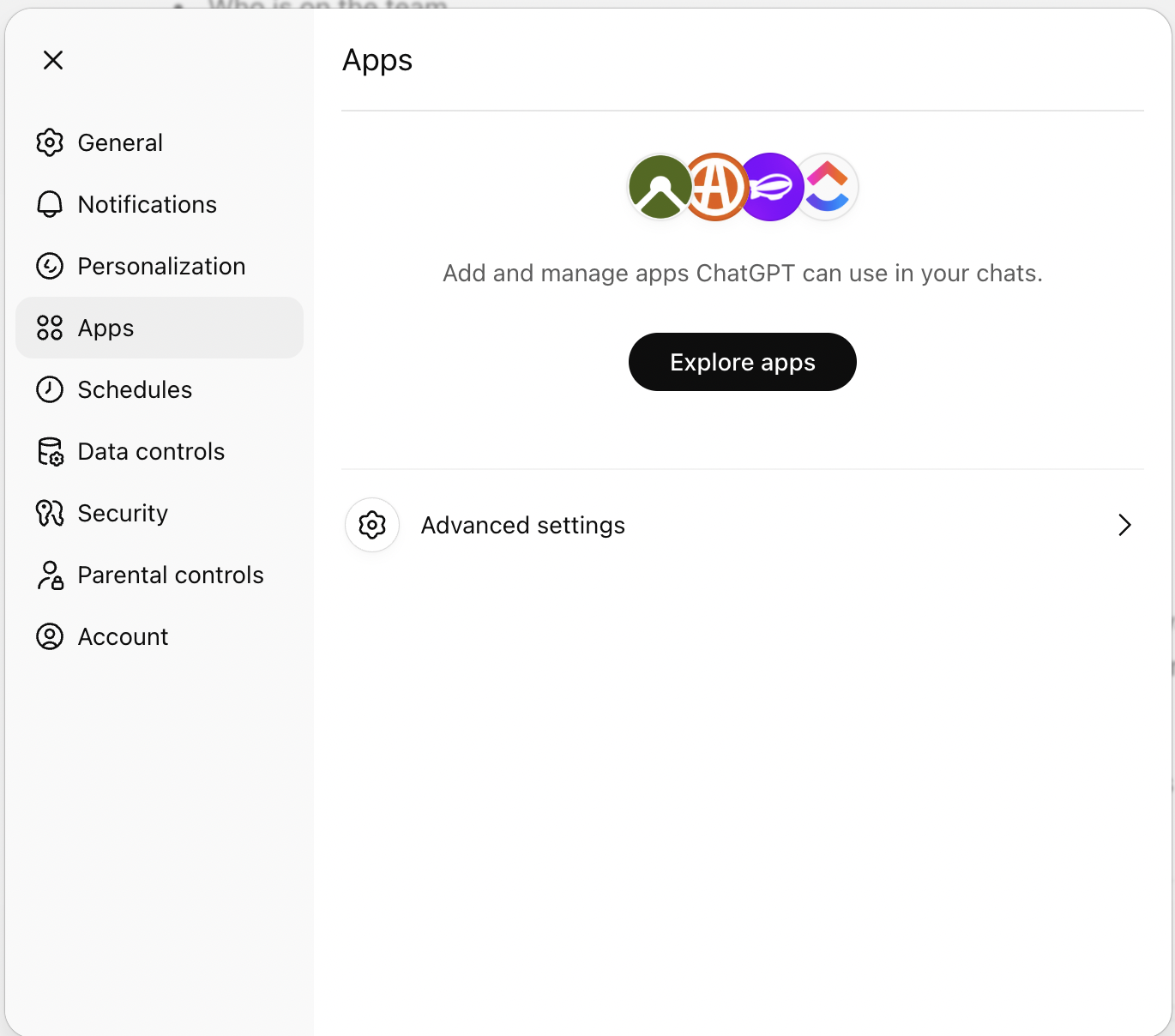
Open Settings → Apps
Click your profile icon in ChatGPT and select Settings. Navigate to the Apps tab.
Enable Developer Mode
Click Advanced settings and toggle on Developer mode.
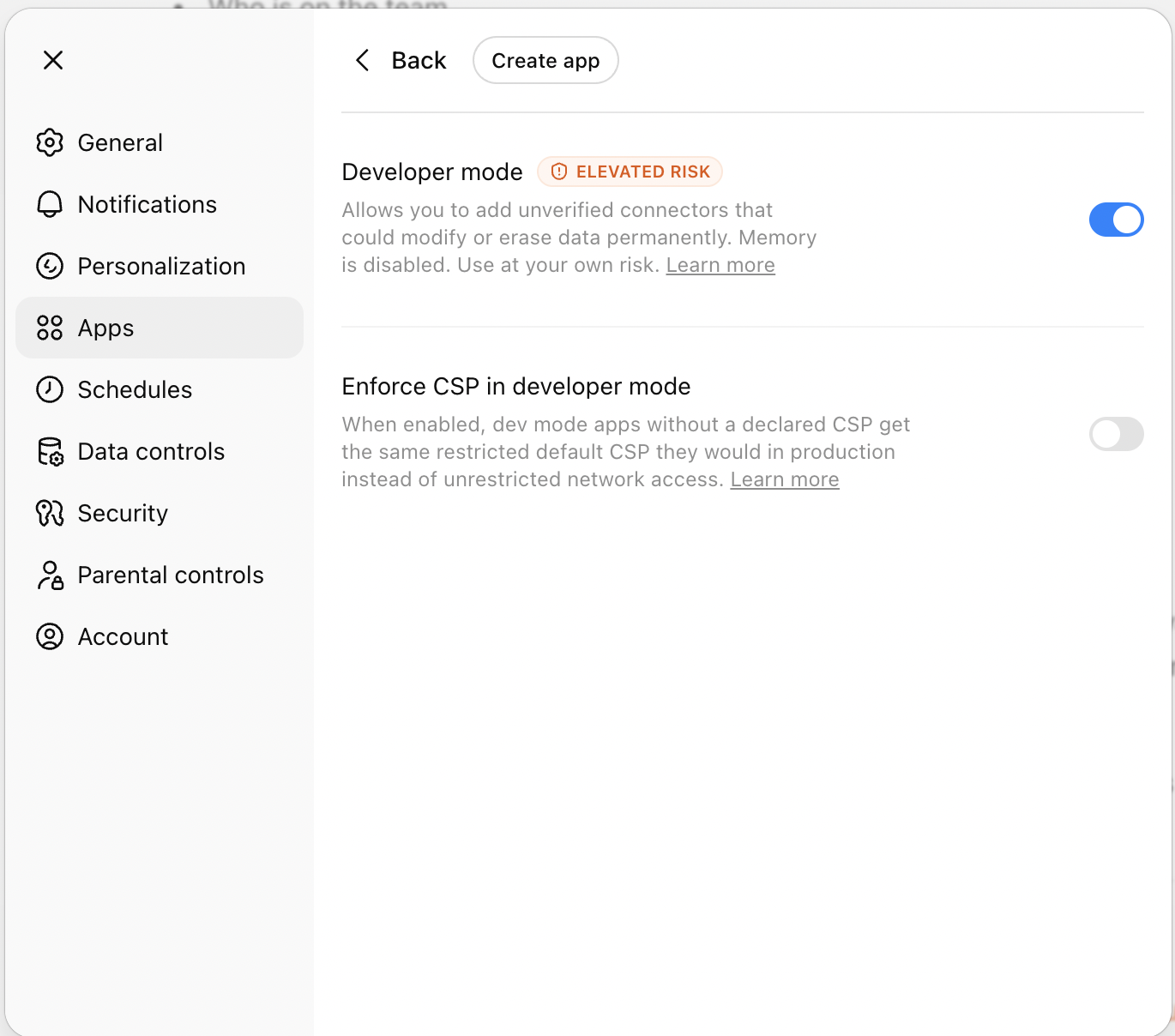
Click Back to return to the Apps overview.
Create a new app
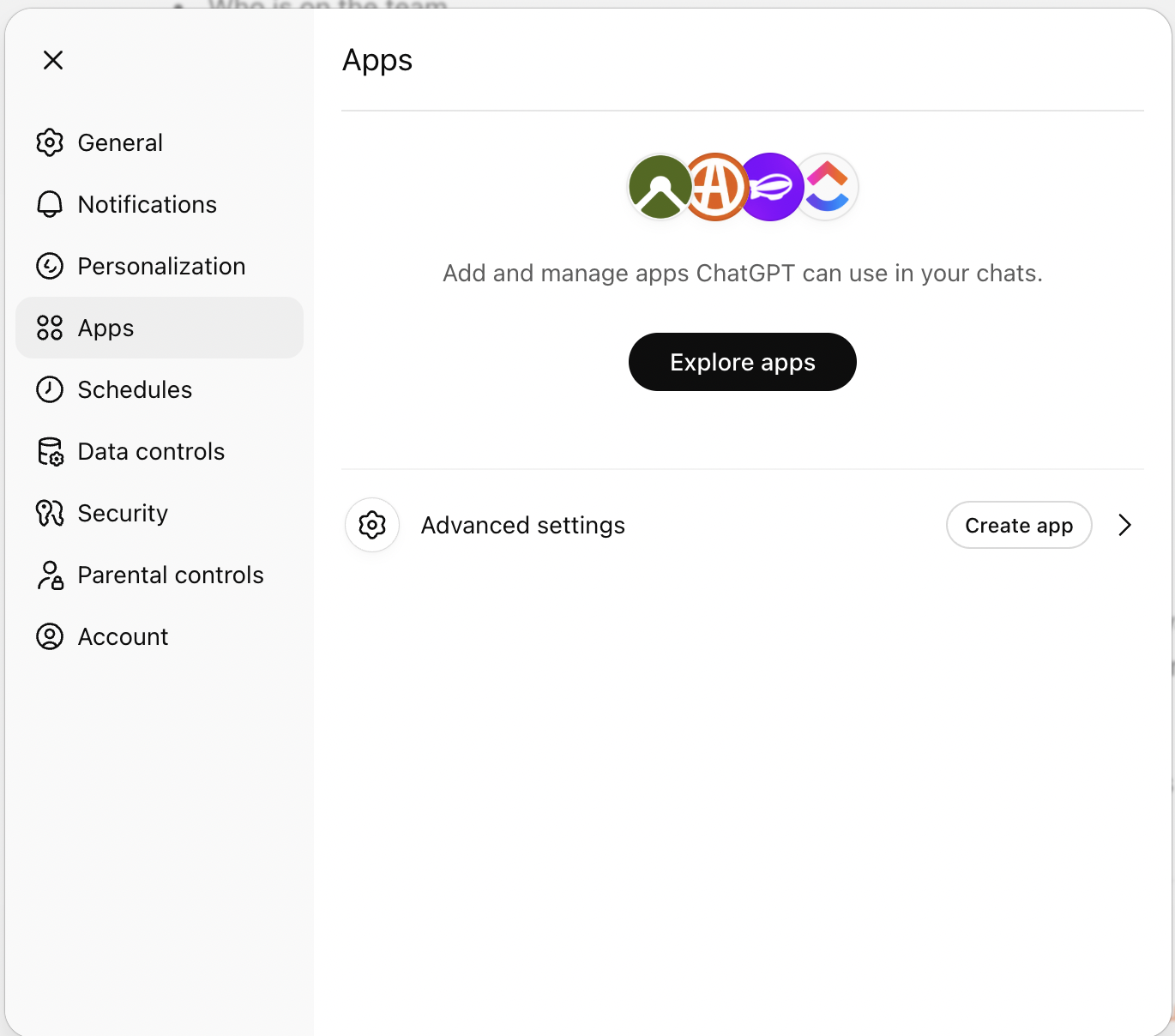
Back on the Apps tab, click Create app next to Advanced settings.
Fill in the app details
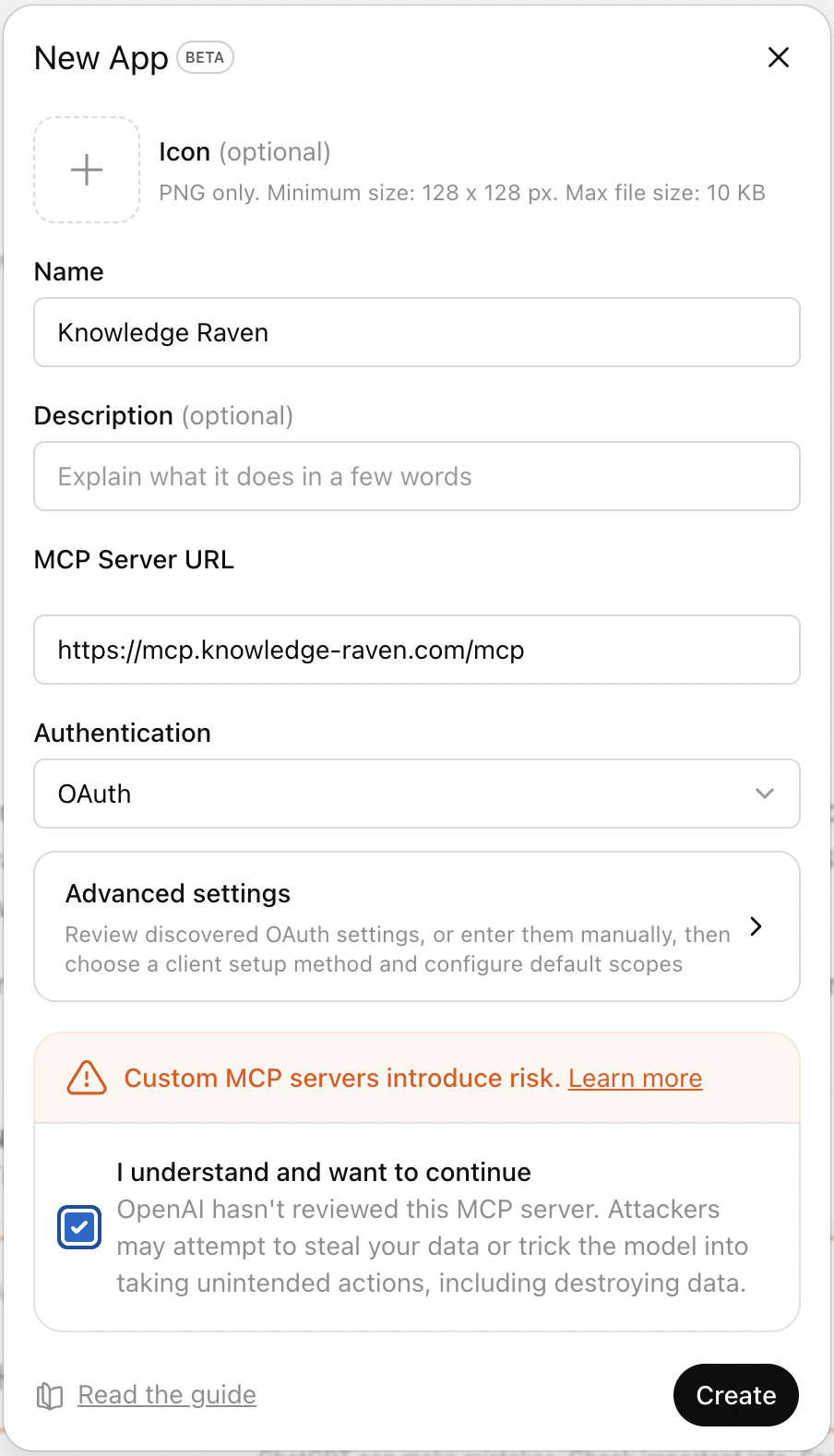
In the New App dialog, enter:
- Name:
Knowledge Raven - MCP Server URL:
https://mcp.knowledge-raven.com/mcp - Authentication:
OAuth(selected by default)
Check “I understand and want to continue” and click Create.
Authorize in the browser
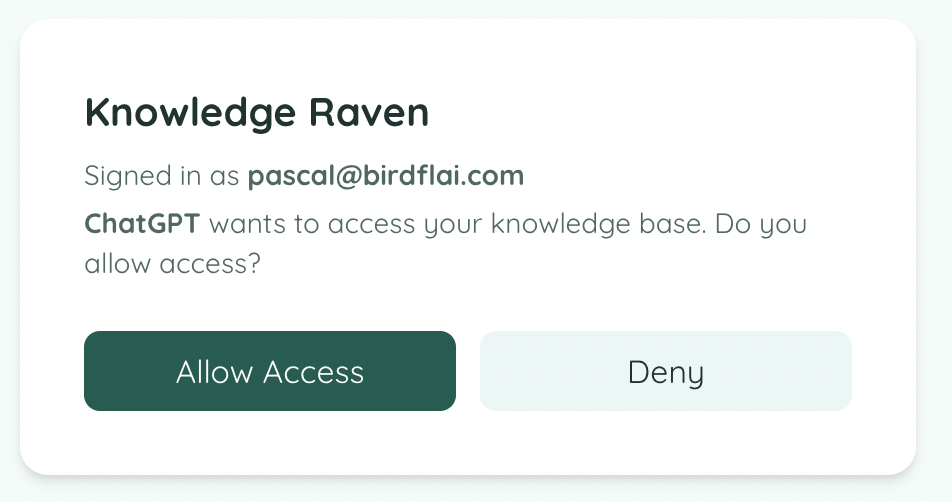
A browser window opens. If not already signed in, log in to your Knowledge Raven account. Then click Allow Access.
Done — you’re connected
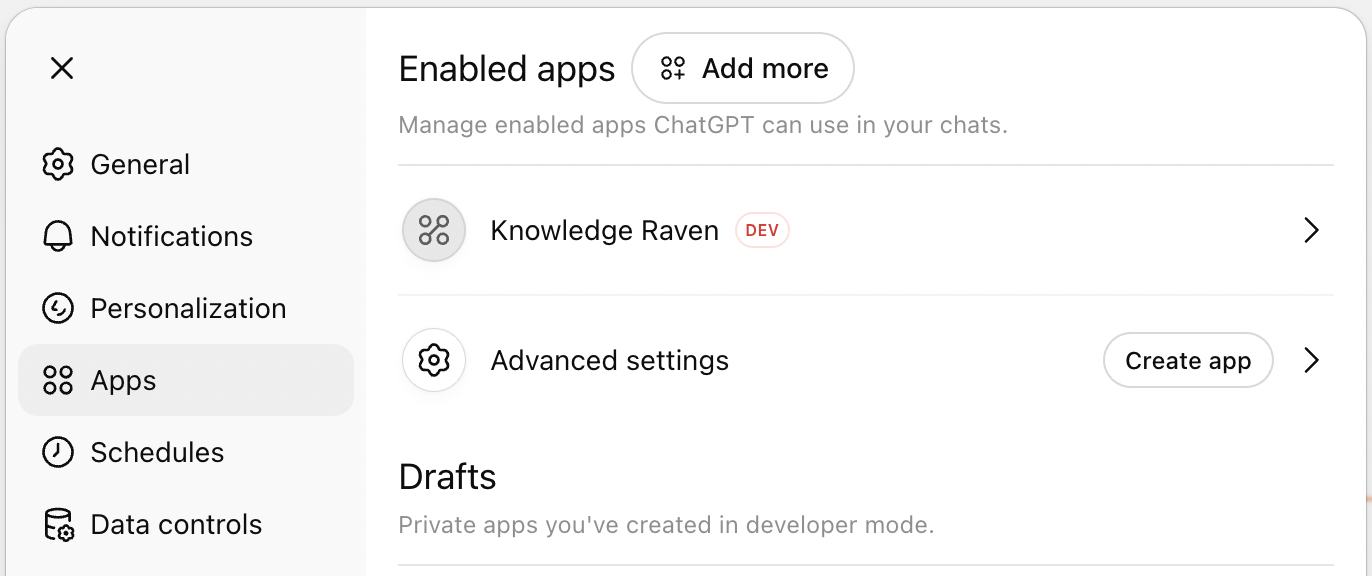
Knowledge Raven appears under Enabled apps with a DEV badge. All 6 tools are now available in your ChatGPT conversations.
“Search my knowledge base for our onboarding process.”
Need help? → Troubleshooting