Dropbox Connector
Sync files from your Dropbox folders into Knowledge Raven. All synced content is immediately searchable by your AI agent.
What Gets Synced
Knowledge Raven indexes the following file formats from Dropbox:
- Documents:
.pdf,.docx,.pptx,.xlsx,.txt,.md,.csv - Maximum file size: 50 MB per file
Files with other extensions or exceeding the size limit are skipped automatically.
How to Connect
Activate the Connector
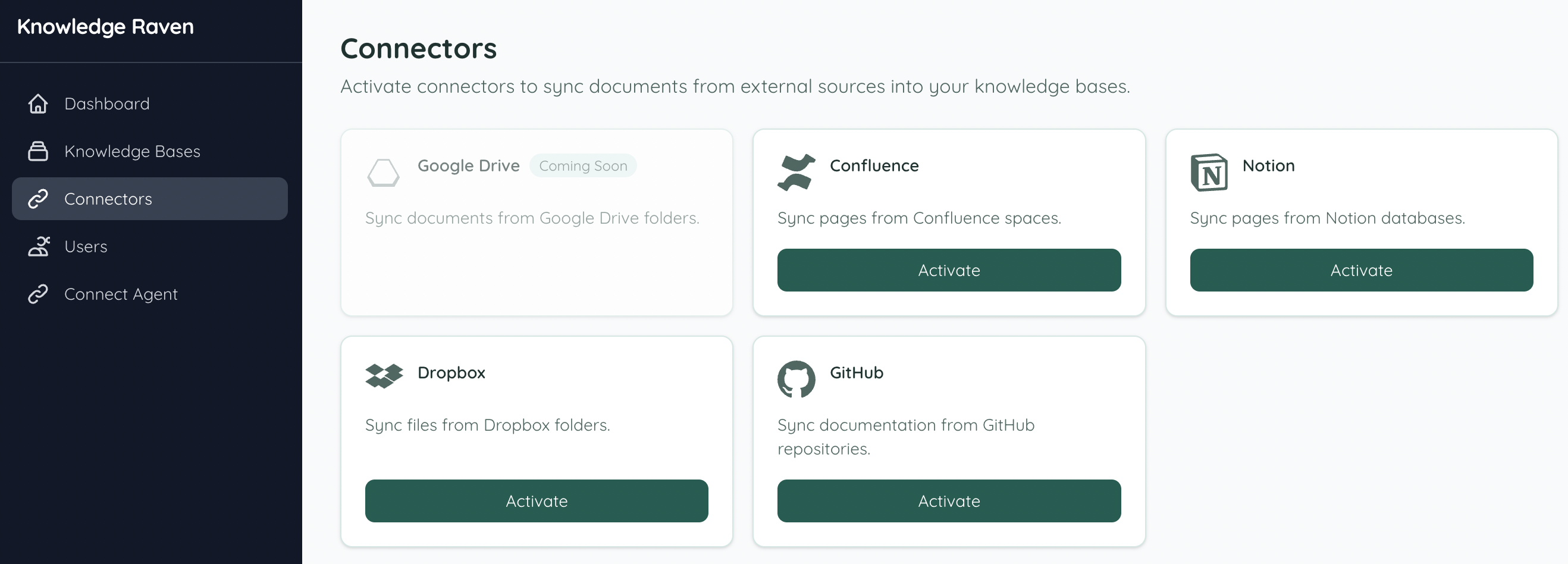
In your Knowledge Raven Dashboard, click Connectors in the sidebar. Find Dropbox and click Activate.
Connect from your Knowledge Base
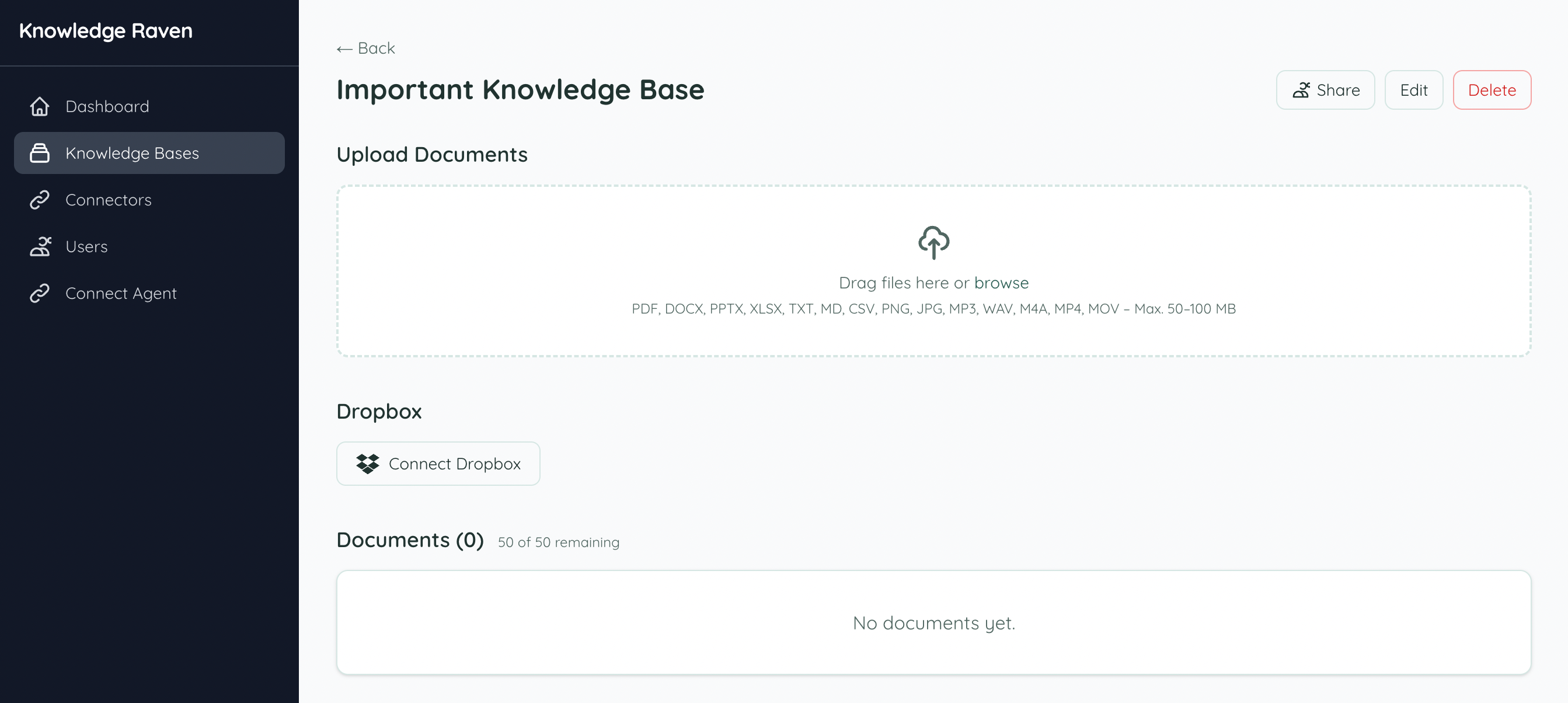
Open the Knowledge Base you want to sync into. You’ll see a Connect Dropbox button — click it to start the connection. You are redirected to Dropbox’s OAuth page where you authorize Knowledge Raven with read access to your files.
Select Folders
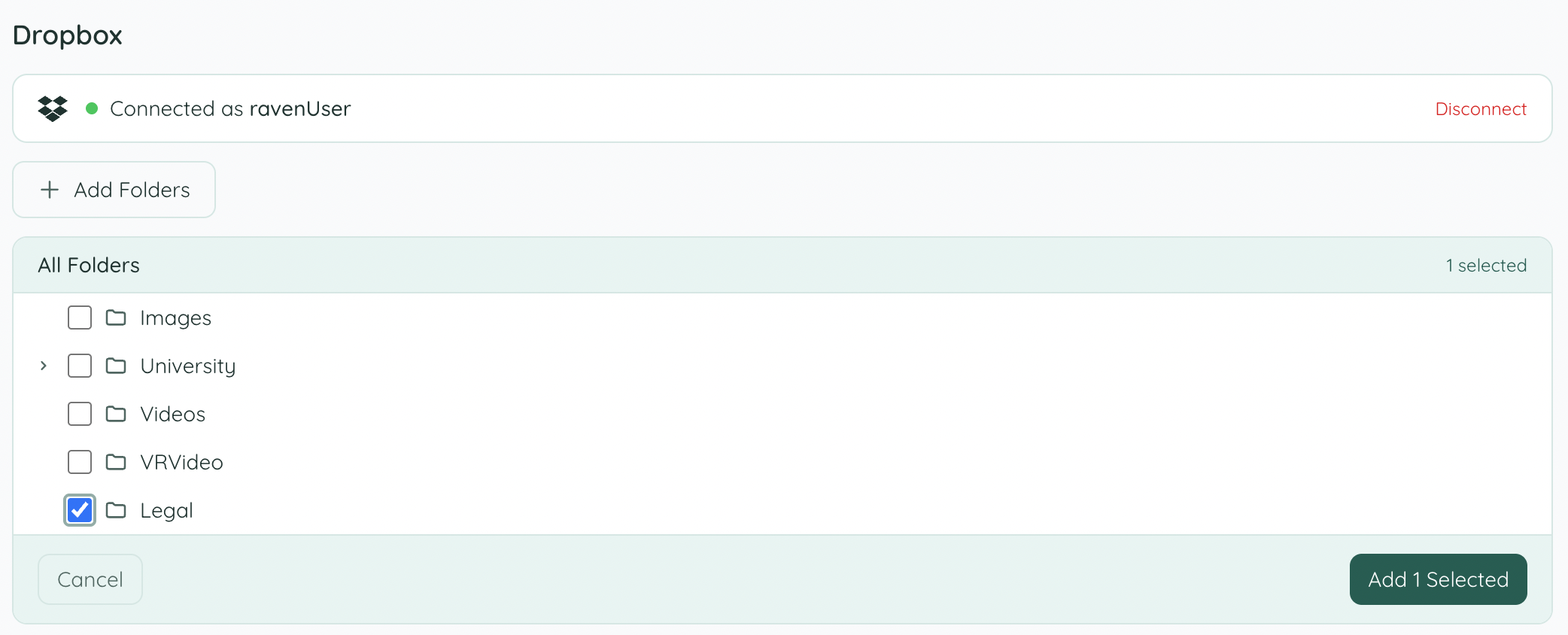
After authorization, Knowledge Raven lists your Dropbox folder hierarchy. Select the folders you want to sync and click Add Selected.
Done — content is indexed
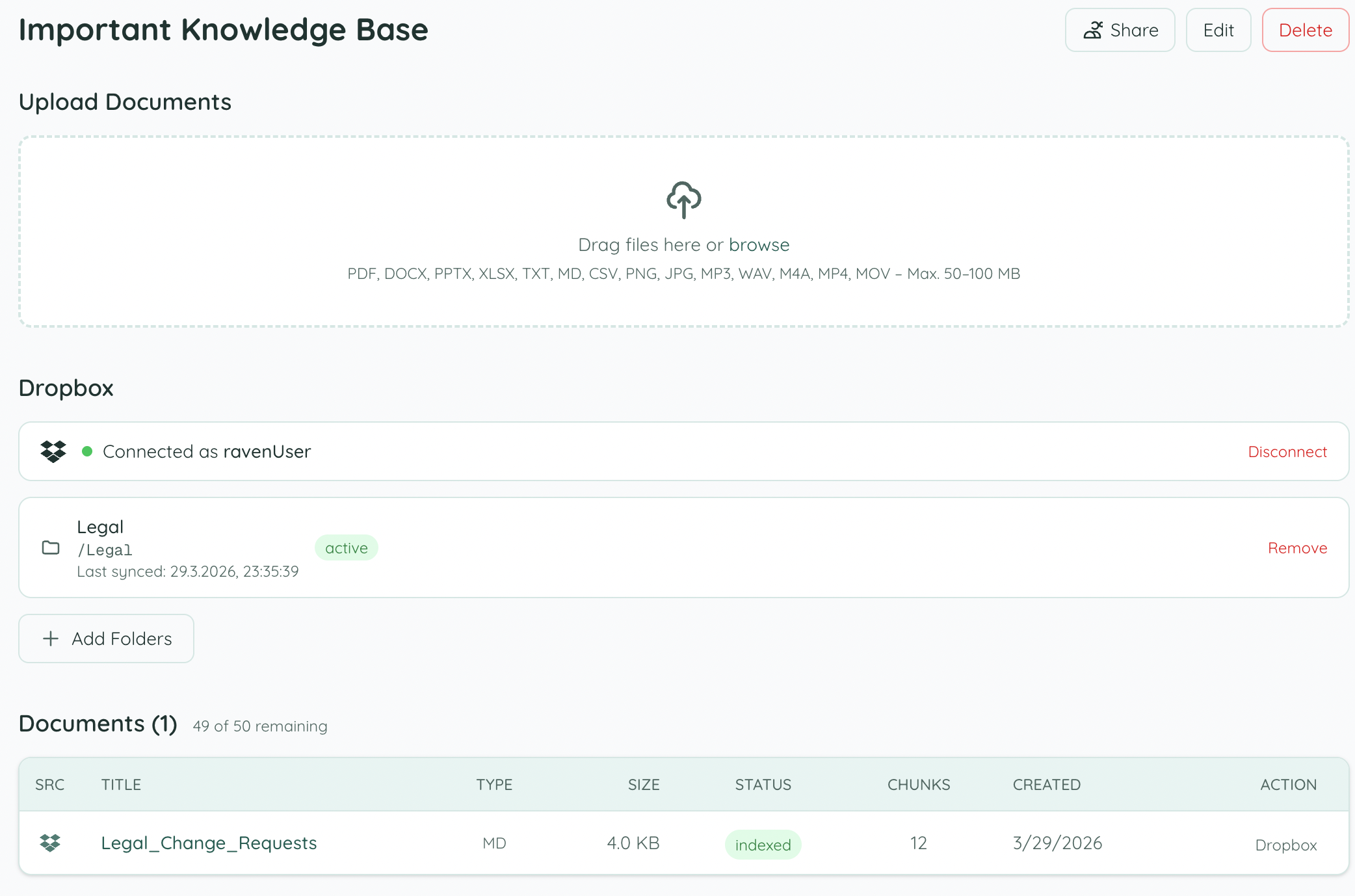
Knowledge Raven downloads eligible files from the selected folders, generates embeddings, and makes everything searchable. Once syncing is complete, all files appear in the Documents list with status indexed.
Change Detection
Dropbox uses content hash-based change detection — Knowledge Raven stores the Dropbox content_hash for each file and only re-downloads files whose hash has changed.
Token Handling
Dropbox refresh tokens are stable — they do not rotate on each use (unlike Atlassian). Knowledge Raven stores them securely using AES-256 encryption. Only the short-lived access token (~4 hours) is refreshed automatically.
Source Deep-Linking
When your agent cites a file from Dropbox, the source_link points to the shared Dropbox file URL, so you can open it directly with one click.
Troubleshooting
“Unsupported file type” — Only the 7 document formats listed above are indexed. Other file types are intentionally skipped.
Files not appearing after upload — New files are picked up on the next scheduled sync. Trigger a manual sync from the Knowledge Base page if you need immediate indexing.